

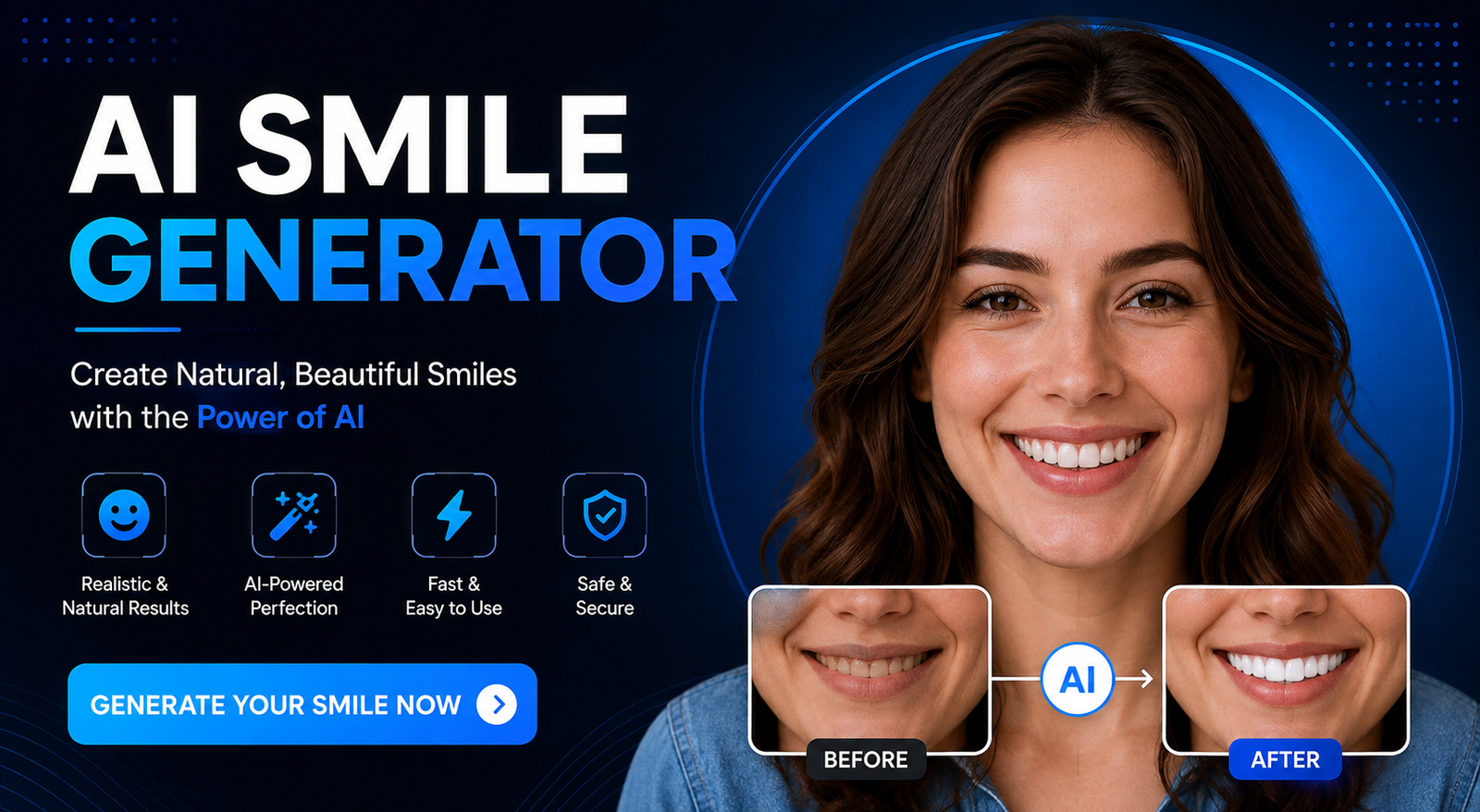
Have you ever taken a great photo only to realize your expression looks too serious? An AI smile generator can help turn that almost-perfect picture into a more natural, friendly portrait without requiring another photoshoot or advanced Photoshop skills.
AI-powered photo editors can analyze a face and modify its expression while attempting to preserve important details such as facial structure, skin texture, eyes, hair, lighting, and background. Depending on the tool, you may be able to create a subtle smile, professional smile, closed-mouth expression, or a wider smile with visible teeth.
Whether you need a better LinkedIn headshot, a social media photo, a dating profile picture, or simply want to improve an old portrait, AI makes the process quick and accessible.
What Is an AI Smile Generator?
An AI smile generator is a photo-editing tool that uses artificial intelligence to change a person's facial expression and add a smile to an existing image.
Instead of manually reshaping the mouth, cheeks, and other facial features, AI analyzes the face and generates an adjusted expression. More advanced tools can make related changes around the eyes and cheeks so the result looks more convincing.
The goal is not simply to place a smile over someone's face. A good AI smile editor attempts to make the new expression fit the person's existing identity, lighting, skin tone, and facial proportions.
This makes AI smile generation useful for portraits where the person looks neutral, serious, or slightly unhappy but the rest of the photograph is worth keeping.
How Does an AI Smile Generator Work?
Although different platforms use different models and workflows, the process generally involves several stages.
1. Upload Your Photo
You start by uploading a portrait or another image containing a visible face. A clear, well-lit photo usually produces better results.
2. Detect Facial Features
The AI identifies facial landmarks such as the eyes, nose, mouth, cheeks, and jawline. This helps it understand where and how the expression should change.
3. Analyze the Existing Expression
The system evaluates the person's current facial expression and determines how a smile could be introduced without completely changing the face.
4. Generate the New Expression
The AI modifies relevant areas of the image. Depending on the tool, it may adjust the mouth, cheeks, teeth, and areas around the eyes.
5. Blend the Result
The final stage attempts to make the edited expression match the original image. Lighting, shadows, skin texture, and surrounding facial details all matter.
Because AI generation is not perfect, you should always inspect the final image rather than assuming the first result will be flawless.
Best AI Smile Generators: What Should You Look For?
There is no single tool that is perfect for every situation. The best choice depends on whether you care most about realism, free usage, professional portraits, speed, or editing control.
When comparing an AI smile generator free option, don't look only at the word “free.” Check whether the tool adds watermarks, limits generations, requires an account, or restricts high-resolution downloads.
How to Add a Smile to a Photo With AI
Adding a smile is usually straightforward.
Step 1: Choose a Good Photo
Use an image where the face is reasonably clear and visible. Avoid heavily blurred photographs, extreme side angles, or faces covered by objects.
A high-quality source gives the AI more information to work with.
Step 2: Upload the Image
Open your chosen AI photo editor and upload the portrait. Some platforms work entirely online, while others provide dedicated mobile or desktop apps.
Step 3: Select the Smile Feature
Depending on the service, the feature may be called Smile, Add Smile, Change Expression, or Facial Expression Editor.
Step 4: Select the Desired Expression
If the tool provides controls, start with a subtle or natural smile. A moderate change is often more believable than an exaggerated expression.
Step 5: Review the Result
Look closely at:
The mouth
Teeth
Eyes
Cheeks
Face shape
Skin texture
Background
Step 6: Regenerate if Necessary
If the result looks unnatural, try a different smile intensity or use a more specific prompt.
One generation isn't always the best generation.
Best AI Smile Prompts for Photo Editing
If your editor supports text prompts, precise instructions can help you get a better result.
Natural Smile Prompt
Add a subtle, natural smile while preserving the person's identity, facial proportions, skin texture, eyes, hair, lighting, and background.
Professional Headshot Prompt
Give the person a warm, professional smile suitable for a LinkedIn profile photo. Keep the facial structure, identity, skin texture, and background unchanged.
Closed-Mouth Smile Prompt
Add a gentle closed-mouth smile with naturally raised cheeks. Preserve the person's original facial features, proportions, lighting, and identity.
Big Smile Prompt
Add a genuine, joyful smile with naturally visible teeth while keeping the person's face, eyes, skin texture, hair, and background consistent with the original photo.
Friendly Social Media Smile Prompt
Give the person a relaxed and friendly smile that looks natural and authentic. Do not change the person's identity or facial structure.
Avoid prompts that simply say “make the person smile.” More specific instructions can give the AI a clearer idea of the expression you want.
Types of Smiles You Can Create With AI
Different photos call for different expressions.
For professional photography, a subtle expression often works better than a dramatic smile. For casual photos, you can experiment with a wider expression.
Best Uses for an AI Smile Generator
LinkedIn and Professional Headshots
A neutral expression can sometimes make a professional profile look overly serious. A subtle smile can create a warmer impression while keeping the photo professional.
Dating Profile Photos
A natural smile can make a portrait feel more approachable. The key is authenticity. An exaggerated AI-generated expression may have the opposite effect.
Social Media Photos
An AI smile generator online can be useful when you like the composition, clothing, lighting, or background of a picture but aren't happy with your expression.
Family and Group Photos
AI editing can be particularly useful when a group photo is almost perfect except for one person's expression. However, results can vary when several faces need editing simultaneously.
Old Photographs
Some AI editors can combine expression editing with restoration or enhancement. Be cautious with heavily damaged photographs because the AI may need to reconstruct missing facial details.
Business and Marketing Photos
Companies and creators can use expression editing when preparing portraits for websites, team pages, presentations, or social campaigns.
How to Make an AI-Generated Smile Look Natural
The biggest challenge isn't generating a smile. It's generating one that doesn't look artificial.
Start With a High-Quality Image
The clearer the original face, the more useful information the AI has.
Choose a Moderate Smile
Start small. You can always increase the intensity later.
Protect the Person's Identity
Compare the edited image with the original. If the nose, jaw, eyes, or face shape suddenly looks different, the AI may have changed too much.
Check the Eyes
A realistic smile should generally fit the rest of the expression. If the mouth is smiling but the eyes remain strangely unchanged, the result may look artificial.
Inspect the Teeth
Zoom into the image. Watch for:
Distorted teeth
Repeated tooth patterns
Strange gums
Excessive whitening
Unnatural spacing
Compare the Background
Some generative editors may modify areas outside the face. Make sure clothing, hair, furniture, and the background still look correct.
Why Does My AI-Generated Smile Look Fake?
Not every AI-generated result will look perfect. Common problems include an oversized smile, distorted teeth, changed facial proportions, or unnatural skin.
The most effective approach is often to regenerate rather than repeatedly editing a poor result.
AI Smile Generator vs. Photoshop
Both approaches have advantages.
If you simply want to make someone smile, AI is usually more convenient. Photoshop is preferable when you need detailed control over individual facial features or the entire photograph.
Are AI Smile Generators Free?
Some platforms provide free generations, trials, or limited credits, but “free” can mean different things.
A free tool might restrict:
Number of edits
Image resolution
Download options
Daily usage
Commercial use
Watermark-free exports
Before uploading a personal photo, check the current pricing and terms. A tool offering a free preview may still require payment for a high-resolution final image.
For people searching for an AI smile generator blog free solution, comparing the actual free limits is more useful than simply labeling a tool “free.”
Is It Safe to Upload Photos to an AI Smile Generator?
Privacy should be part of your decision when choosing a face smile editor online free or paid.
Before uploading a personal portrait, check the provider's privacy policy for information about:
How long images are stored
Whether uploaded images are deleted
Whether images are used to improve AI models
Whether an account is required
Whether images are shared with third parties
How users can request data deletion
Avoid uploading sensitive photographs unless you understand how the service handles them.
Frequently Asked Questions
What is the best AI smile generator?
The best option depends on your goal. Look for a tool that provides realistic expressions, preserves identity, offers suitable smile controls, and gives you enough free usage or export quality for your needs.
Is there a free AI smile generator?
Yes, some services offer free credits, trials, or limited editing. However, free plans may include watermarks, lower resolution, or usage limits.
Can AI add a smile to an existing photo?
Yes. AI facial-expression editors can analyze an existing portrait and generate a new smile while attempting to preserve the person's facial appearance.
Can AI create a closed-mouth smile?
Many AI editors can create subtle or closed-mouth expressions. A specific prompt such as “add a gentle closed-mouth smile” can help when text instructions are supported.
Will an AI smile generator change my face?
It can. Although many tools aim to preserve identity, AI-generated edits may occasionally alter facial details. Always compare the result with the original.
Can I use an AI smile generator for LinkedIn?
Yes. A subtle, professional smile can be appropriate for LinkedIn, resumes, business websites, and other professional profiles. Avoid overly dramatic expressions.
Can I add a smile to an old photograph?
Yes, provided the face is sufficiently visible. For severely damaged or blurry photos, restoration may be needed before expression editing produces reliable results.
Conclusion
An AI smile generator is a practical way to improve a portrait when the expression doesn't match the quality of the rest of the photograph. Instead of reshooting the picture or manually editing facial features, you can use AI to experiment with subtle, professional, friendly, or more expressive smiles.
For the most realistic result, start with a clear image, choose a moderate expression, use a precise prompt, and carefully inspect the eyes, teeth, facial structure, and background. Also compare free plans, export restrictions, and privacy policies before choosing a tool.
The best AI smile editor isn't necessarily the one with the most features. It's the one that produces a believable smile while keeping the person recognizable as themselves.
Leave a Reply