

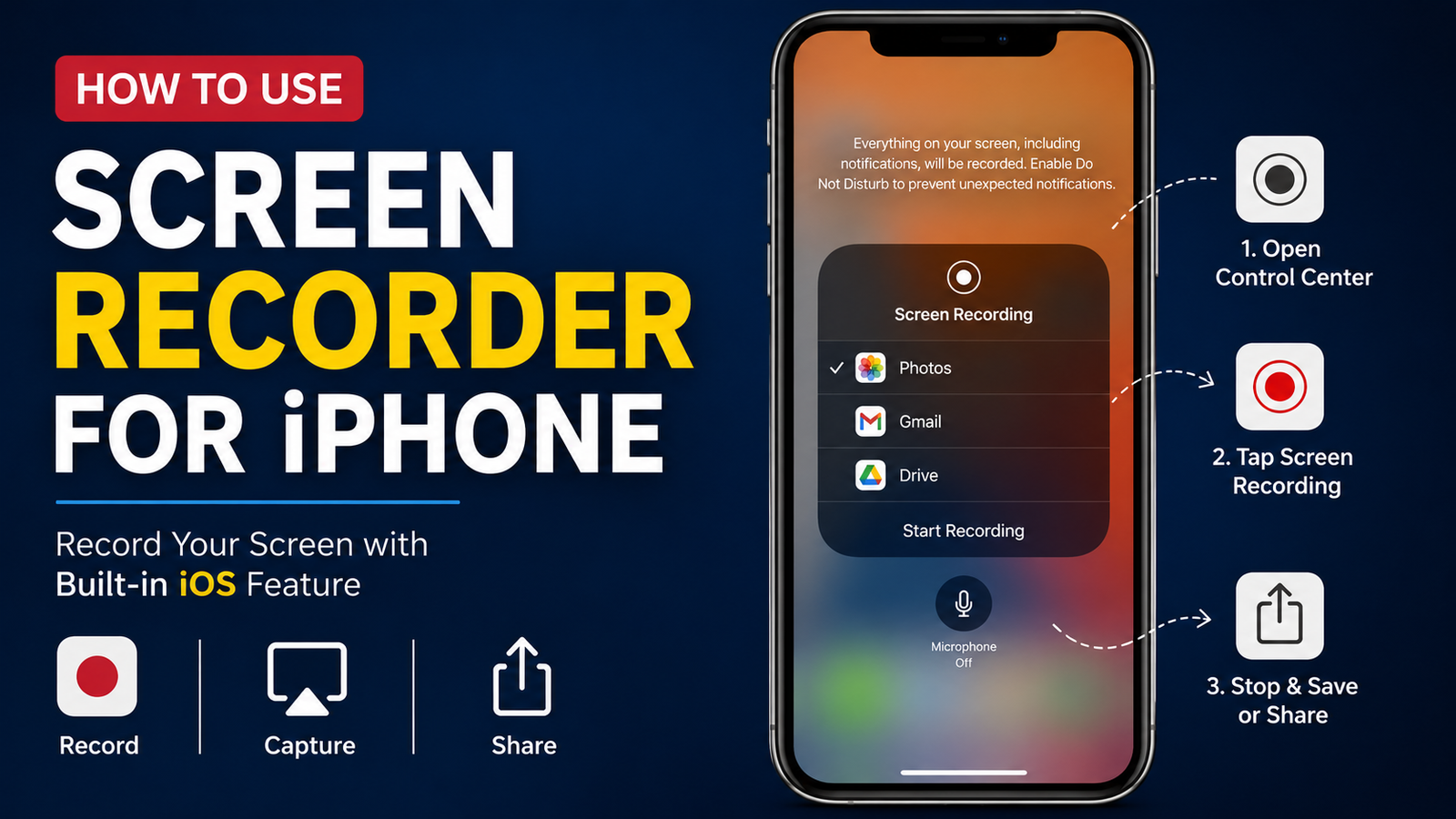
Capturing your iPhone screen has become an essential feature for students, professionals, gamers, teachers, and content creators alike. Whether you're recording a tutorial, saving an online class, demonstrating an app, or sharing gameplay, using a screen recorder for iPhone makes the process quick and convenient.
Apple includes a built-in screen recorder with every modern iPhone, but many users need advanced features like facecam recording, video editing, annotations, or cloud sharing. That's where third-party screen recording apps come in.
In this guide, you'll learn how to record your screen on iPhone, compare the best screen recording apps, understand their strengths and limitations, and discover practical tips to create high-quality recordings with sound.
What Is a Screen Recorder for iPhone?
A screen recorder for iPhone is a feature or application that captures everything happening on your device's display and saves it as a video. You can use it to create tutorials, record gameplay, capture video calls (where permitted), demonstrate apps, or troubleshoot technical issues.
Apple's built-in recorder is free, easy to use, and available on most modern iPhones. However, if you need additional features like editing, facecam overlays, or advanced sharing options, third-party apps can provide greater flexibility.
Common uses include:
Recording educational lessons
Creating YouTube tutorials
Capturing gaming highlights
Demonstrating apps
Reporting software bugs
Saving important presentations
Recording social media content
Whether you're looking for a screen recorder for iPhone blog free resource or searching for the best screen recorder for iPhone blog, understanding your options helps you choose the right solution.
How to Screen Record on iPhone
Learning how to record your screen on iPhone only takes a few moments.
Turn on Screen Recording iPhone
Before recording, you must add the Screen Recording button to Control Center.
Open Settings.
Tap Control Center.
Find Screen Recording.
Tap the green + icon.
Now the recorder is available from Control Center whenever you need it.
Start Recording
Swipe down from the top-right corner of your screen.
Tap the Screen Recording icon.
A three-second countdown begins.
Everything displayed on your screen will now be recorded.
The recording indicator appears at the top of your screen so you know recording is active.
Screen Recording with Sound iPhone
If you want narration or external audio:
Open Control Center.
Press and hold the Screen Recording button.
Tap the Microphone icon.
Select Start Recording.
This enables screen recording with sound iPhone, making it ideal for tutorials, product demonstrations, and educational videos.
Stop Recording
To stop recording:
Tap the red recording indicator at the top of the screen, or
Return to Control Center and tap the Screen Recording button again.
Your video automatically saves to the Photos app.
How to Screen Record on iPhone 15
If you're wondering how to screen record on iPhone 15, the process is identical to other recent iPhones. Add Screen Recording to Control Center, tap the recording button, and your video is saved automatically after you stop recording.
How to Screen Record on iPhone 16
The steps for how to screen record on iPhone 16 remain the same. Apple has kept the screen recording interface simple, allowing users to start recording within seconds.
How to Screen Record on iPhone 17
Users searching how to screen record on iPhone 17 can expect a familiar experience with the latest iOS version. Simply access Control Center, enable the recorder, and optionally activate the microphone for voice narration.
Built-in Screen Recorder vs Third-Party Apps
The built-in recorder is excellent for everyday tasks, but advanced users often benefit from dedicated recording apps.
If you only need occasional recordings, Apple's recorder is more than enough. However, creators, educators, marketers, and developers often appreciate the additional tools offered by specialized apps.
Best Screen Recorder Apps for iPhone
Choosing the right app depends on how you plan to use your recordings.
1. Built-in iPhone Screen Recorder
The built-in recorder remains the easiest option.
Pros
Completely free
No downloads required
Excellent video quality
Easy to use
No watermark
Cons
No facecam
Minimal editing
No annotations
Best for
Everyday users, students, and quick recordings.
2. Record It!
Record It! is one of the most popular screen recording apps on the App Store.
Pros
Facecam recording
Easy editing
Simple sharing
User-friendly interface
Cons
Some premium features require payment
Free version has limitations
Best for
Content creators and tutorial videos.
3. TechSmith Capture
TechSmith Capture is designed for professionals who need clear recordings for training, presentations, or software demonstrations.
Pros
High-quality recording
Reliable performance
Excellent for educational content
Integrates with editing software
Cons
Limited editing inside the app
Requires additional software for advanced production
Best for
Teachers, trainers, and business professionals.
4. Loom
Loom focuses on communication and collaboration.
Pros
Instant sharing
Cloud storage
Webcam support
Great for remote work
Cons
Requires an account
Internet connection needed for many features
Best for
Remote teams, online meetings, and workplace communication.
5. DemoScope
DemoScope is built specifically for app demonstrations.
Pros
Gesture visualization
Professional demonstrations
Excellent app showcase features
Cons
More specialized than general recording apps
Best for
Developers, QA testers, and software companies.
6. StreamYard
StreamYard combines recording with live streaming capabilities.
Pros
Live broadcasting
Multiple platform support
Professional streaming tools
Cons
Some features require a paid plan
Better suited for creators than casual users
Best for
YouTubers, podcasters, and live streamers.
Comparison of the Best iPhone Screen Recorder Apps
The right choice depends on your goals. If you only need to capture your screen occasionally, Apple's built-in recorder is sufficient. If you're producing educational content, streaming, or creating professional tutorials, investing in a dedicated app can significantly improve your workflow.
Which Screen Recorder Is Best for You?
Not every user has the same recording needs. Here's a quick guide to help you choose the right option.
Students
Students often need to record online lectures, presentations, or educational demonstrations.
Recommended: Built-in Screen Recorder or TechSmith Capture
Teachers
Teachers creating online lessons benefit from apps that support annotations and simple editing.
Recommended: TechSmith Capture or Loom
YouTubers
Video creators usually require facecam, editing tools, and high-quality exports.
Recommended: Record It! or StreamYard
TikTok and Instagram Creators
Short-form content creators need quick recording, trimming, and sharing.
Recommended: Record It!
Mobile Gamers
Gamers should look for apps that maintain smooth frame rates while recording gameplay.
Recommended: Built-in Recorder for casual gaming or Record It! for commentary.
Business Professionals
Business users often record product demos, presentations, and walkthroughs.
Recommended: Loom
Developers and QA Teams
Developers frequently record bugs, app demonstrations, and testing sessions.
Recommended: DemoScope
Features to Look for in an iPhone Screen Recorder
Before downloading an app, compare its key features.
Look for:
HD or 4K recording support
60 FPS recording for smoother videos
Facecam overlay
Internal and microphone audio support
Built-in video editor
Annotation and drawing tools
Cloud storage integration
Easy sharing options
File compression
No watermark
Privacy controls
Regular updates
The best screen recorder isn't always the one with the most features—it's the one that matches your workflow.
Common Screen Recording Problems and Fixes
Even Apple's built-in recorder occasionally runs into issues. Here are the most common problems and their solutions.
Most recording issues can be solved within a few minutes without installing additional software.
Tips for Recording Better Videos on iPhone
Professional-looking recordings don't require expensive equipment. A few simple adjustments can make a significant difference.
Enable Focus Mode
Notifications can interrupt your recording. Turning on Focus Mode prevents unwanted pop-ups.
Record in Landscape
Landscape orientation is ideal for YouTube tutorials, presentations, and gameplay videos.
Turn On the Microphone
If you're explaining something, always enable microphone recording before starting.
Close Background Apps
Closing unused apps improves performance and reduces lag.
Free Up Storage
High-quality recordings consume storage quickly. Make sure you have enough available space.
Use Good Lighting for Facecam
If you're using a facecam, proper lighting improves video quality dramatically.
Keep Recordings Short
Short clips are easier to edit, upload, and share.
Trim Videos Before Sharing
Removing unnecessary sections makes your recordings more professional.
Privacy and Legal Considerations
Screen recording is convenient, but it's important to use it responsibly.
Keep these points in mind:
Obtain permission before recording private conversations or meetings.
Some streaming platforms block screen recording due to copyright protection.
Respect copyright laws when sharing recorded content.
Avoid recording sensitive personal information.
Review app permissions before installing third-party screen recorders.
Using trusted apps and understanding privacy settings helps protect both your data and others' privacy.
Practical Use Cases for an iPhone Screen Recorder
Screen recording has become valuable in many everyday situations.
Online Learning
Record lectures and tutorials for later review.
Gaming
Capture achievements, walkthroughs, and highlights.
Product Demonstrations
Show customers exactly how your app or service works.
Software Tutorials
Create easy-to-follow instructional videos.
Bug Reporting
Developers can quickly reproduce and share software issues.
Customer Support
Help users solve problems by recording step-by-step instructions.
Business Presentations
Share presentations with teammates who couldn't attend live meetings.
Social Media Content
Create engaging videos for YouTube, Instagram, TikTok, Facebook, and other platforms.
Frequently Asked Questions
Does iPhone have a built-in screen recorder?
Yes. Modern iPhones include a free built-in screen recorder that can be enabled through Control Center.
Can I record my iPhone screen with sound?
Yes. Before recording, press and hold the Screen Recording button and enable the Microphone to capture your voice. This allows screen recording with sound iPhone for tutorials, presentations, and commentary.
Which is the best screen recorder for iPhone?
The built-in recorder is perfect for most users, while apps like Record It!, Loom, TechSmith Capture, DemoScope, and StreamYard provide advanced features for creators and professionals.
Can I screen record Netflix or Disney+?
Most streaming services prevent screen recording of copyrighted content. Attempting to record these videos often results in a black screen.
Why is there no sound in my screen recording?
The microphone may not have been enabled before recording, or the app you're recording may restrict audio capture.
Does screen recording reduce video quality?
No. Apple's built-in recorder captures high-quality video, though quality may vary depending on your available storage and device performance.
Is screen recording safe?
Yes. Using Apple's built-in recorder is safe. If you install third-party apps, download them from trusted sources and review their permissions.
Conclusion
A screen recorder for iPhone is one of the most useful tools available for capturing tutorials, gameplay, presentations, online classes, and app demonstrations. Apple's built-in recorder is fast, reliable, and completely free, making it an excellent choice for everyday use.
However, if you need advanced features like facecam recording, editing tools, annotations, cloud sharing, or live streaming, third-party apps such as Record It!, Loom, TechSmith Capture, DemoScope, and StreamYard offer greater flexibility.
By understanding your recording needs and choosing the right app, you can create clear, professional-quality videos for work, education, or content creation. Whether you're learning how to record your screen on iPhone, searching for the best screen recorder for iPhone blog, or looking up how to screen record on iPhone 15, how to screen record on iPhone 16, or how to screen record on iPhone 17, the right tools and techniques will help you record with confidence.
Leave a Reply